Samsung Phone Hang? How to Restart a Frozen Phone
Is your Samsung phone hanging, frozen on one screen, or not responding when you touch the display? You may not be able to open Settings or use the normal Restart option.
In most cases, you can try a force restart using the physical buttons. This guide explains how to restart a frozen Samsung Galaxy phone, what to do if the screen is black, and how to prevent repeated hanging problems.
Quick Answer:
If your Samsung Galaxy phone is frozen, follow these steps:
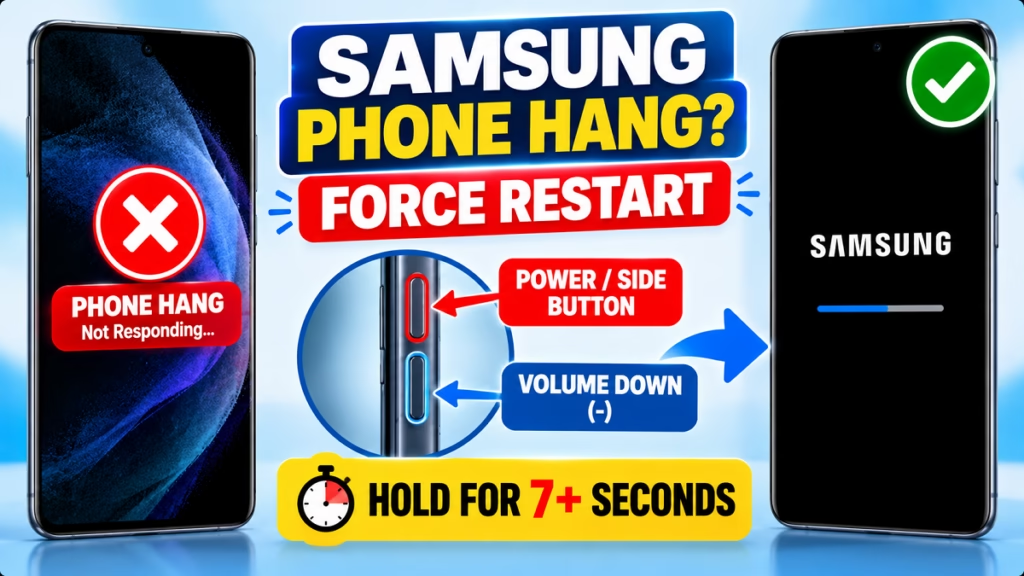
- Locate the Side/Power button and Volume Down (-) button.
- Press and hold both buttons at the same time for at least 7 seconds.
- Release the buttons when the Samsung logo appears and the phone restarts.
- Wait for the phone to finish booting.
Samsung confirms this method for supported Galaxy devices. A force restart normally does not delete your personal data. <Cite refs={[“turn109997search0″,”turn109997search8”]}/>
Method 1: Force Restart a Frozen Samsung Phone
Use this method if the screen is frozen, touch is not responding, or an app has stopped working and you cannot access the power menu.
Step 1: Find the physical buttons
Locate the Side/Power button and Volume Down button on your phone. Their positions may vary by model.
Step 2: Press both buttons together
Press and hold the Side/Power button and Volume Down button simultaneously.
Step 3: Keep holding for at least 7 seconds
Do not release the buttons too early. Continue holding until the phone restarts and the Samsung logo appears.
Step 4: Wait for startup
Release the buttons and let the phone boot normally. If your device uses a PIN or password after restarting, enter it when prompted.
If your phone case makes the buttons difficult to press together, remove the case and try again. <Cite refs={[“turn109997search0”]}/>
Method 2: Restart Samsung When the Touchscreen Still Works
If your phone is slow but still responds to touch, try a regular restart first.
- Swipe down from the top of the screen to open the Quick panel.
- Swipe down again if necessary to expand the panel.
- Tap the Power icon.
- Select Restart and confirm if prompted.
The menu names and layout can vary depending on your Samsung model and software version. <Cite refs={[“turn109997search9”]}/>
Method 3: What If Your Samsung Phone Has a Black Screen?
A black screen can result from a temporary system freeze, a fully drained battery, or a display or hardware problem.
Try these steps:
- Connect your phone to a compatible, Samsung-approved charger and cable.
- Leave it charging for around 15–30 minutes.
- Check for a charging indicator or vibration.
- Try holding Side/Power + Volume Down again.
If the phone vibrates or rings but the display stays black, the problem may involve the screen rather than the software. If the device remains unresponsive, contact Samsung Support. <Cite refs={[“turn109997search0″,”turn109997search2”]}/>
Why Does a Samsung Phone Keep Hanging?
A force restart can resolve a temporary freeze, but it may not fix the underlying cause.
1. Low Storage Space
When internal storage is almost full, your phone may become slow or unresponsive. After restarting, remove unnecessary downloads and unused apps, and back up important files before deleting anything.
2. Too Many Apps Running
Resource-intensive apps can use a large amount of memory. Close apps you are not using and check whether one particular app consistently causes freezing.
3. Outdated Apps or Software
Software bugs can sometimes cause a phone to freeze. Check for available system and app updates after your device starts working normally again.
4. Overheating
Gaming, extended camera use, or heavy workloads in a hot environment can make a phone unusually warm. Stop demanding activities and allow the device to cool naturally.
5. Battery or Hardware Problems
If the phone repeatedly switches off, freezes during startup, or refuses to turn on, the problem may require professional diagnosis.
Samsung also recommends checking available storage and memory if a Galaxy device frequently becomes unresponsive. <Cite refs={[“turn109997search1″,”turn109997search9”]}/>
How to Prevent Your Samsung Phone From Hanging Again
After restarting your phone, follow these precautions:
- Keep sufficient internal storage free.
- Update apps and system software when appropriate.
- Uninstall apps that repeatedly crash or cause freezing.
- Avoid running too many demanding apps simultaneously.
- Let the phone cool down if it becomes unusually hot.
- Back up important photos, contacts, and documents regularly.
If the phone keeps freezing, back up your data before attempting advanced troubleshooting. A factory reset should be a last resort because it erases data stored on the device.
When Should You Contact Samsung Support?
Contact an authorised service centre if:
- Your phone does not respond to the force-restart combination.
- It repeatedly gets stuck on the Samsung logo.
- The display remains black despite signs that the phone is switched on.
- The phone becomes unusually hot or shows signs of physical damage.
- It continues freezing after basic troubleshooting.
You can visit Samsung India Support for official troubleshooting guidance. <Cite refs={[“turn109997search0”]}/>
Frequently Asked Questions
How do I restart a Samsung phone when it is hanging?
Press and hold the Side/Power button and Volume Down button together for at least 7 seconds, until the Samsung logo appears.
Will force restarting my Samsung phone delete my data?
A normal force restart does not usually erase personal data. Avoid selecting factory reset or formatting options unless you understand their consequences.
What if my Samsung Power button is not working?
If the physical button is damaged, the standard force-restart method may not work. If the screen responds, use the on-screen power menu. Otherwise, contact an authorised service centre.
Why does my Samsung phone hang repeatedly?
Common causes include low storage, problematic apps, overheating, software issues, or hardware faults. If the problem persists after restarting, investigate the underlying cause.
What should I do if my Samsung phone is stuck on the logo?
Try the force-restart combination first. If the phone repeatedly returns to the Samsung logo or enters a maintenance screen, consult Samsung Support before attempting a reset that could erase data.
Final Words
If your Samsung phone is hanging, start by holding the Side/Power + Volume Down buttons for at least 7 seconds. This can resolve a temporary freeze without normally erasing your data.
If the phone continues to hang, check its storage, apps, and temperature. Persistent freezing, a black screen, or repeated startup failures may require professional assistance.
Samsung Phone Hang, Samsung Phone Restart, Frozen Phone Fix, Samsung Troubleshooting, Android Problems, Mobile Problems

Hindimeto.com एक हिंदी ब्लॉग है जो आपको विभिन्न विषयों पर जानकारी देता है। इस ब्लॉग का संस्थापक और प्रबंधक Avi Sharma है, जो एक पेशेवर ब्लॉगर और लेखक हैं।
Avi Sharma ने इस ब्लॉग को 2020 में शुरू किया था, जब उन्होंने अपनी पहली पोस्ट Tech के बारे में लिखी थी। उनका लक्ष्य था कि वे अपने अनुभव और ज्ञान को लोगों के साथ साझा करें और उन्हें हिंदी में उपयोगी और रोचक सामग्री प्रदान करें।
आज, Hindimeto.com एक लोकप्रिय और विश्वसनीय हिंदी ब्लॉग बन गया है, जो आपको Tech, Mobile, Apps, Make money, Biography article, Government scheme जैसे विषयों पर अद्भुत और गहन जानकारी देता है।