Clickable Elements Too Close Together: How to Fix It
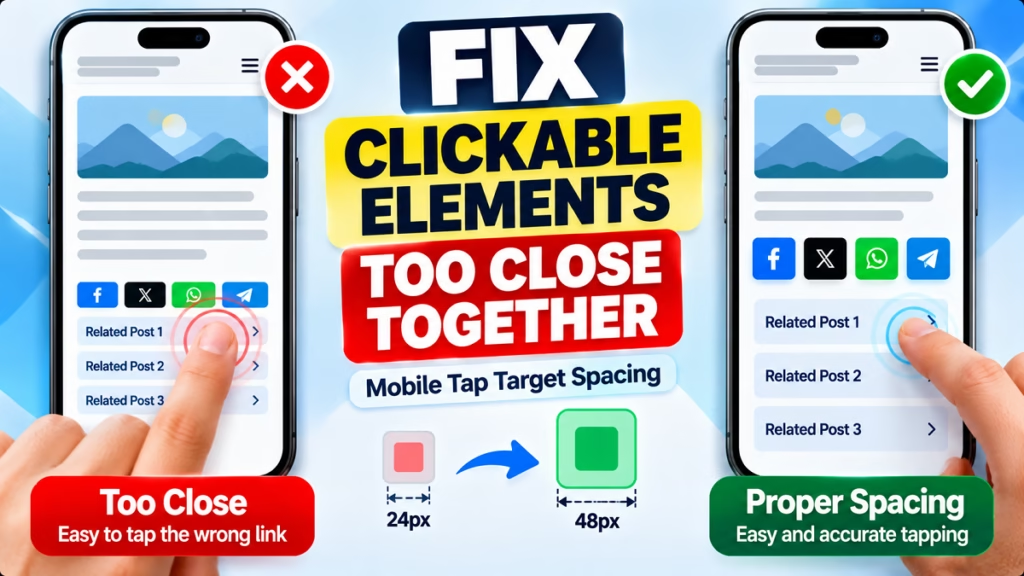
If you see the warning “Clickable elements too close together” while checking your website with an SEO or mobile testing tool, it usually means that links, buttons, icons, or other interactive elements are too close to one another on mobile screens.
When tap targets are crowded, visitors may accidentally open the wrong link or press the wrong button. The good news is that you can often fix this issue by adjusting your website’s CSS, increasing tap-target size, or adding more spacing between elements.
In this guide, you’ll learn how to identify the problem and fix it on a WordPress website, including sites using the Astra theme.
What Does “Clickable Elements Too Close Together” Mean?
Clickable elements are parts of a webpage that visitors can interact with, such as:
- Navigation menu links
- Social sharing icons
- Read More buttons
- Related post links
- Pagination numbers
- Form buttons and small controls
The warning appears when interactive elements are positioned so close together that users may struggle to tap the intended element accurately. It is particularly noticeable on mobile devices, where people use their fingers instead of a mouse.
For better touch usability, Chrome’s Lighthouse guidance recommends making tap targets around 48 × 48 CSS pixels where practical. It also suggests starting with approximately 8 pixels of spacing between targets, although some layouts may need more. <Cite refs={[“turn388539search0”]}/>
How to Fix Clickable Elements Too Close Together
1. Identify the Elements Causing the Warning
Before changing your website’s design, find the elements responsible for the warning.
- Open the page in a mobile browser or use Chrome DevTools device emulation.
- Run a test using PageSpeed Insights or Lighthouse.
- Review the report’s tap-target findings, if available.
- Check the affected links, icons, buttons, and menu items.
- Note whether the problem occurs across the website or only on specific pages.
Pay particular attention to small social icons, footer links, related posts, and tightly packed navigation items.
2. Increase the Size of Tap Targets
A link may look large enough because its text is readable, but its actual clickable area can still be too small.
You can improve the tap area by adding padding without necessarily making the visible text or icon larger.
For example:
.mobile-menu a {
  display: block;
  padding: 12px 16px;
  line-height: 1.5;
}
This gives each menu link more vertical and horizontal room. Adjust the selector to match your website’s actual menu structure.
Where practical, aim for a tap target of approximately 48 × 48 CSS pixels. Avoid expanding neighboring clickable areas so much that they overlap. <Cite refs={[“turn388539search0″,”turn388539search1”]}/>
3. Add Spacing Between Links and Buttons
If two buttons or links sit directly next to each other, add a gap or margin.
For example:
.button-group {
  display: flex;
  flex-wrap: wrap;
  gap: 12px;
}
This works for elements placed inside a shared container. If your buttons use a different layout, adjust the CSS accordingly.
For vertical lists of links, increasing line height or adding padding to each link can also help:
.related-posts a {
  display: block;
  padding: 12px 0;
  line-height: 1.6;
}
Do not apply large margins to every link across the website without testing. Excessive spacing can make the layout unnecessarily long or disrupt desktop designs.
4. Fix the Issue in WordPress and Astra
If your website uses WordPress with the Astra theme, follow these steps:
- Open your WordPress Dashboard.
- Go to Appearance → Customize → Additional CSS, if this option is available in your setup.
- Add CSS targeted to the affected element.
- Publish the changes.
- Clear your website cache and any relevant optimization or CDN cache.
- Test the affected page on a mobile device.
For example, you can try this CSS for common Astra navigation elements:
@media (max-width: 768px) {
  .ast-mobile-popup-content .menu-item > a,
  .main-header-menu .menu-item > a {
    padding: 12px 16px;
    line-height: 1.5;
  }
}
Important: This is a starting point, not a guaranteed fix for every Astra layout. The relevant menu selector may differ depending on your header configuration and plugins. Inspect the actual element before applying site-wide changes.
5. Check Social Sharing Icons
Social sharing buttons are another common place to look. Small icons placed in a single row may be difficult to tap accurately on a phone.
If your social icons share a common container, you can try:
.social-sharing {
  display: flex;
  flex-wrap: wrap;
  gap: 12px;
}

.social-sharing a {
  display: inline-flex;
  align-items: center;
  justify-content: center;
  min-width: 48px;
  min-height: 48px;
}
Replace .social-sharing with the class used by your actual sharing plugin. Do not add this CSS blindly if the plugin already controls the icon layout.
6. Clear Cache and Test Again
After changing the CSS, the old layout may remain visible because of caching.
- Clear your WordPress caching plugin’s cache.
- Clear any CDN cache if you use one.
- Open the page in a private or incognito window.
- Check the page at different mobile viewport widths.
- Run Lighthouse or PageSpeed Insights again.
If the warning remains, inspect the specific failing elements rather than adding more general CSS. A button might need a larger tap area, while a list of links may need more vertical spacing.
Does This Warning Affect SEO Rankings?
The warning is primarily about mobile usability and accessibility. It does not automatically mean that Google has applied a ranking penalty to your website.
However, a mobile layout that is difficult to use can frustrate visitors and make important links or buttons harder to interact with. Google recommends ensuring that mobile pages are usable and that Google can access and render their content. <Cite refs={[“turn388539search5”]}/>
Fix the issue because it improves the visitor experience, not simply to make a testing report display a perfect score.
Common Mistakes to Avoid
- Adding CSS without identifying the problem: The warning may be caused by a specific plugin or widget.
- Making every link 48 pixels tall: Use appropriate sizing for the layout, and check that interactive areas do not overlap.
- Editing desktop styles unnecessarily: Use a mobile media query when the problem occurs only on smaller screens.
- Ignoring cache: You may not see your updated CSS until cached files are cleared.
- Assuming the warning has disappeared: Re-test the affected page after making changes.
Frequently Asked Questions
1. What causes clickable elements to be too close together?
This usually happens when links, buttons, menu items, or social icons have small clickable areas or insufficient spacing between them.
2. What is the recommended tap-target size?
A practical target is approximately 48 × 48 CSS pixels, with around 8 pixels of separation as a starting point. Actual requirements depend on the audit and layout. <Cite refs={[“turn388539search0”]}/>
3. How do I fix this warning in WordPress?
Identify the affected elements, then adjust their padding, margins, line height, or container gap using the theme settings or targeted CSS.
4. Can CSS fix clickable elements that are too close together?
Yes. CSS can increase tap-target dimensions or add space between elements. You need to use the correct selectors for your theme or plugin.
5. Will this warning cause a Google ranking penalty?
The warning itself does not automatically mean a ranking penalty. Improving mobile usability is still worthwhile because it helps visitors interact with your website more easily.
Final Thoughts
To fix “Clickable elements too close together,” identify the affected mobile elements first. Then increase the clickable area, add sufficient spacing, and test the page again.
For a WordPress website using Astra, start by checking the mobile menu, social sharing icons, related post links, and buttons. Apply CSS only to the elements that need it, clear your cache, and verify the result on mobile.
Clickable Elements, Mobile Usability, WordPress CSS, Astra Theme, Tap Targets, Website Fixes, SEO Tips

Hindimeto.com एक हिंदी ब्लॉग है जो आपको विभिन्न विषयों पर जानकारी देता है। इस ब्लॉग का संस्थापक और प्रबंधक Avi Sharma है, जो एक पेशेवर ब्लॉगर और लेखक हैं।
Avi Sharma ने इस ब्लॉग को 2020 में शुरू किया था, जब उन्होंने अपनी पहली पोस्ट Tech के बारे में लिखी थी। उनका लक्ष्य था कि वे अपने अनुभव और ज्ञान को लोगों के साथ साझा करें और उन्हें हिंदी में उपयोगी और रोचक सामग्री प्रदान करें।
आज, Hindimeto.com एक लोकप्रिय और विश्वसनीय हिंदी ब्लॉग बन गया है, जो आपको Tech, Mobile, Apps, Make money, Biography article, Government scheme जैसे विषयों पर अद्भुत और गहन जानकारी देता है।