Google Play Store क्या है? Apps Download और Update करने का पूरा तरीका
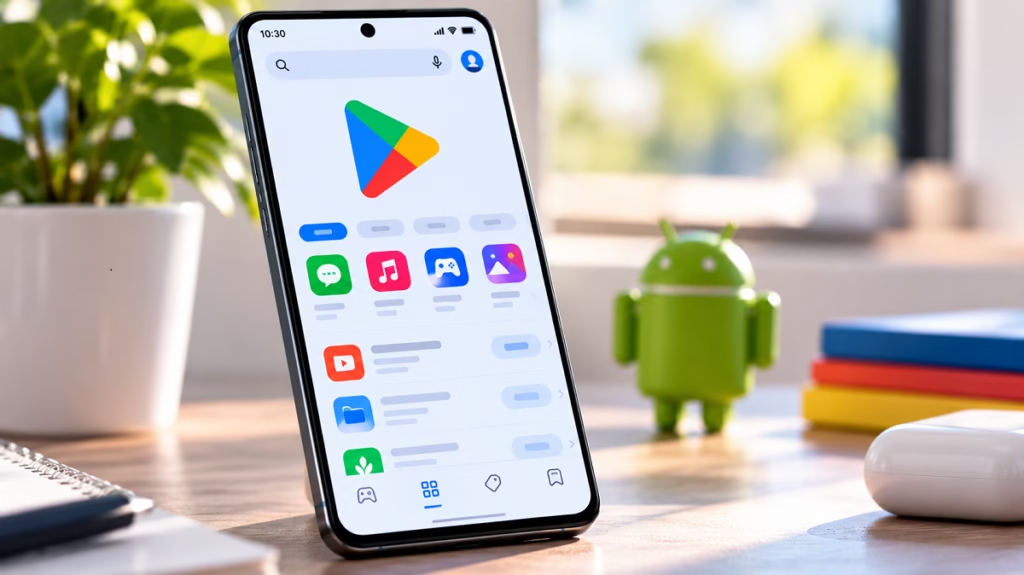
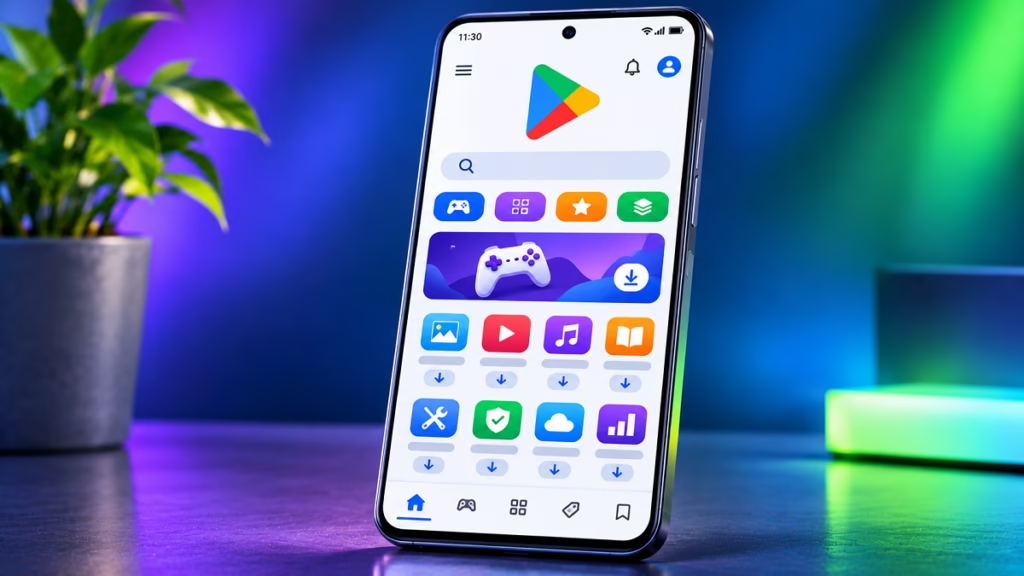
Google Play Store Android Smartphone इस्तेमाल करने वाले करोड़ों लोगों के लिए Apps, Games और Digital Content डाउनलोड करने का प्रमुख Platform है। इसकी मदद से आप WhatsApp, Instagram, YouTube, Banking Apps, Games और कई दूसरे Applications अपने फोन में Install कर सकते हैं।
लेकिन क्या आप जानते हैं कि Play Store से App Download करने के अलावा पुराने Apps Update करना, पहले Download किए गए Apps दोबारा Install करना और App Permissions व Security से जुड़ी जानकारी देखना भी संभव है?
इस गाइड में Google Play Store से जुड़ी जरूरी जानकारी आसान भाषा में समझेंगे।
Quick Answer
Google Play Store Google का Official App Store है, जहां से Android Users Apps, Games और अन्य Digital Content Download और Update कर सकते हैं। किसी App को Install करने के लिए Play Store खोलें, Search Bar में उसका नाम लिखें, सही App चुनें और Install पर Tap करें। App Updates के लिए Profile Icon → Manage apps and device में जाएं।
Google Play Store क्या है?
Google Play Store Android Devices के लिए Google का Digital Distribution Platform है। यहां Developers अपने Applications और Games उपलब्ध कराते हैं, जिन्हें Users अपने Compatible Android Devices पर Download और Install कर सकते हैं।
Play Store आमतौर पर उन Android Devices में पहले से Installed आता है जो Google Play को Support करते हैं। हालांकि, हर Android Device में इसकी उपलब्धता जरूरी नहीं है। Google Play Help
Play Store पर आपको कई तरह के Applications मिलते हैं:
- Social Media Apps
- Entertainment और Video Streaming Apps
- Mobile Banking और Payment Apps
- Education और Learning Apps
- Photo Editing और Video Editing Apps
- Mobile Games
- Productivity और Business Apps
Google Play Store से App Download कैसे करें?
अगर आप पहली बार Android Phone में कोई App Install कर रहे हैं, तो नीचे दिए गए Steps Follow करें।
Netflix was offered a big discount on the Play Store’s “Google Tax” – PhoneArena
- अपने Smartphone में Google Play Store Open करें।
- ऊपर दिए गए Search Bar पर Tap करें।
- जिस App को Download करना है, उसका नाम लिखें।
- Search Results में सही App Select करें।
- App का नाम, Developer और उपलब्ध जानकारी Check करें।
- Install Button पर Tap करें।
- Download पूरा होने के बाद Open पर Tap करके App इस्तेमाल करें।
ध्यान रखें कि कुछ Apps Paid हो सकते हैं या उनके अंदर In-App Purchases उपलब्ध हो सकती हैं।
Google Play Store से Apps Update कैसे करें?
Apps Update करने से नए Features, Bug Fixes और Security Improvements मिल सकते हैं।
इसके लिए:
- Google Play Store Open करें।
- ऊपर Profile Icon पर Tap करें।
- Manage apps and device पर जाएं।
- Updates Available विकल्प देखें।
- किसी एक App को Update करने के लिए Update पर Tap करें।
- सभी उपलब्ध Updates के लिए Update all चुनें।
Google Play Store में इसी Section से Installed Apps को Manage भी किया जा सकता है।
पहले Download किए गए Apps दोबारा कैसे Install करें?
अगर आपने कोई App पहले Install किया था और बाद में Delete कर दिया, तो उसे दोबारा Download कर सकते हैं।
- Play Store Open करें।
- Profile Icon पर Tap करें।
- Manage apps and device चुनें।
- Manage Tab Open करें।
- This device विकल्प पर Tap करें।
- Not installed Select करें।
- जिस App को दोबारा Install करना है, उसे चुनें और Install पर Tap करें।
पहले खरीदे गए Apps दोबारा इस्तेमाल करने के लिए उसी Google Account से Sign In होना जरूरी है। Google Play Help
Google Play Store में App सुरक्षित है या नहीं कैसे चेक करें?
किसी भी App को Install करने से पहले कुछ जरूरी बातें जरूर Check करें।
- Developer Name: App किस Developer ने बनाया है, यह देखें।
- Reviews और Ratings: दूसरे Users के Reviews पढ़ें।
- Downloads: App की Popularity का अंदाजा लगाएं।
- Data Safety: App किस तरह का User Data Collect या Share करता है, इसकी जानकारी देखें।
- Permissions: App को Camera, Microphone, Location या Contacts की जरूरत क्यों है, यह समझें।
Play Store पर उपलब्ध होना किसी App की पूर्ण सुरक्षा की गारंटी नहीं है। इसलिए अनजान Developers के Apps Install करते समय सावधानी रखें।
Google Play Store काम नहीं कर रहा है तो क्या करें?
कई बार Play Store Open नहीं होता, Apps Download नहीं होते या Download Pending दिखाई देता है। ऐसी स्थिति में नीचे दिए गए Solutions आजमा सकते हैं।
1. Internet Connection Check करें
सबसे पहले Wi-Fi या Mobile Data Connection Check करें। कमजोर Internet Connection की वजह से App Download अटक सकता है।
2. Phone Storage खाली करें
अगर Smartphone में Storage कम है, तो Apps Download या Install नहीं हो पाएंगे। Settings → Storage में जाकर Available Space Check करें।
3. Smartphone Restart करें
फोन को Restart करने के बाद Play Store दोबारा Open करें। कई बार Temporary Problems इससे ठीक हो सकती हैं।
4. Play Store का Cache Clear करें
Google Play Store Not Working? Fixes and Solutions » nextpit
- Phone की Settings Open करें।
- Apps या App Management पर जाएं।
- Google Play Store Select करें।
- Storage या Storage and Cache पर Tap करें।
- Clear Cache चुनें।
अगर समस्या बनी रहती है, तो Clear Storage का विकल्प भी इस्तेमाल किया जा सकता है। लेकिन इससे Play Store की कुछ Settings, जैसे Parental Controls और Password Protection, Reset हो सकती हैं। Google Play Help+1
5. Play Store Update करें
- Google Play Store Open करें।
- Profile Icon पर Tap करें।
- Settings → About पर जाएं।
- Play Store Version पर Tap करें।
- अगर Update उपलब्ध है, तो Play Store उसे Install करने की प्रक्रिया शुरू करेगा। Google Play Help
Google Play Store और Google Play Services में क्या अंतर है?
कई Android Users इन दोनों को एक ही समझ लेते हैं, लेकिन इनका काम अलग है।
| Feature | Google Play Store | Google Play Services |
|---|---|---|
| मुख्य काम | Apps Download करना | Google Services से Apps को Connect करना |
| App Installation | हां | नहीं |
| App Updates | हां | संबंधित Services को Support करता है |
| Google Sign-in | Interface उपलब्ध कराता है | Apps में Sign-in सुविधाओं को Support करता है |
| Google Maps Integration | App Download करने का Platform | Apps को Google Maps Services से Connect करने में मदद |
सरल शब्दों में, Play Store Apps Download करने का Platform है, जबकि Google Play Services Android Apps को कई Google Services और सुविधाओं के साथ काम करने में मदद करता है।
क्या Google Play Store को Download किया जा सकता है?
Google Play Store सामान्यतः Supported Android Smartphones में पहले से Installed आता है। अगर आपको अपने फोन में यह App नहीं मिल रहा है, तो पहले यह Check करें कि App Disable या Hide तो नहीं है।
अगर फोन Google Play को Support नहीं करता है, तो केवल APK File Install करके सभी Google Play Services उपलब्ध नहीं कराई जा सकतीं। Google Play Help
निष्कर्ष
Google Play Store Android Smartphone का एक महत्वपूर्ण हिस्सा है। इसकी मदद से आप नए Apps और Games Download कर सकते हैं, पुराने Applications Update कर सकते हैं और पहले Install किए गए Apps दोबारा इस्तेमाल कर सकते हैं।
अगर Play Store में कोई समस्या आती है, तो Internet Connection, Storage, Cache और App Updates Check करना शुरुआती समाधान हो सकता है। Apps Install करते समय Developer और Permissions की जानकारी जरूर देखें।
Google Play Store, Play Store, Google Play Store App, Play Store Download, Play Store Update, Android Apps, Google Play Services, Play Store Problem

Hello! I’m Avi Sharma (also known as Avdhesh Sharma), the founder of HindiMeTo.com — a platform where I share everything about blogging, digital growth, and online success in the Hindi language, making it easier for people who prefer Hindi to understand and learn.
I’m a Performance Media Manager, a certified SEM expert, and someone who genuinely enjoys helping aspiring bloggers and entrepreneurs build real, successful careers in the digital space.
Follow me on:
IG – Instagram