
How to Disable Google Dialer Call Recording Announcement
If your Android phone announces “This call is now being recorded” whenever you start recording a call, you may be looking for a way to disable the voice announcement.
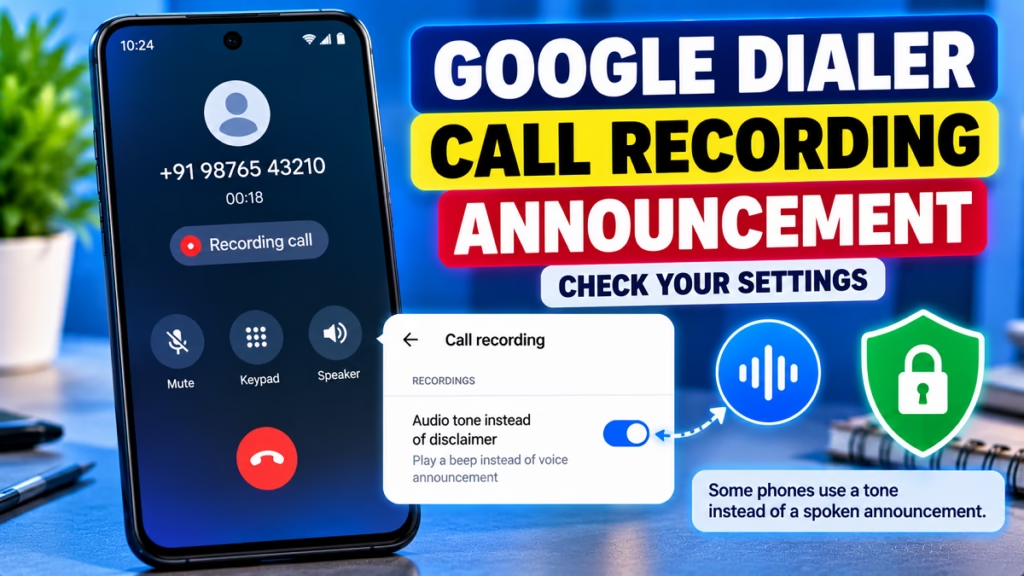
The important point: Google Phone’s standard call-recording feature is designed to notify both participants when recording starts and stops. Motorola’s official support guidance says the announcement cannot be turned off. On some versions or regions, a setting may let you replace the spoken disclaimer with an audio tone, but that still alerts the other participant.
Quick Answer
To check the available options on your phone:
- Open the Phone by Google app.
- Tap the three-dot menu (⋮).
- Select Settings.
- Open Call recording, if available.
- Look for Play audio tone instead of disclaimer, if your version provides it.
If this option appears, enabling it may replace the spoken announcement with a tone. It does not disable the recording notification entirely. If the option is missing, your version may not support it.
1. Check Whether Your Google Dialer Has an Announcement Setting
The available options depend on your phone model, Google Phone app version, and region.
- Open the Phone app.
- Tap ⋮ → Settings.
- Select Call recording.
- Look for an option related to an audio tone or recording disclaimer.
- If available, choose the tone option and follow the on-screen instructions.
If you don’t see this option, there is no supported setting on your version to replace the announcement. Avoid assuming that a tutorial for another phone will work on yours.
2. What If the Setting Is Missing?
If Google Dialer doesn’t show an announcement or tone setting, you have these options:
- Keep the announcement: Continue using the built-in recording feature with its disclosure.
- Stop automatic recording: If calls are being recorded automatically, open Phone → Settings → Call recording and review the Always record settings. Turn off automatic recording rules you no longer need.
- Use a supported recording option: Check your phone manufacturer’s official guidance for any alternative supported by your device and region.
Google’s recording disclosure exists to inform both participants when recording starts and stops. Avoid modified APKs or unofficial workarounds that attempt to bypass this safeguard. Follow the call-recording laws that apply where you and the other participant are located.
3. Does the Audio Tone Option Remove the Announcement Completely?
No. On supported versions, the audio-tone option may replace the spoken message with a beep. It does not make recording silent, and the other participant may still be notified.
If your goal is simply to avoid the spoken voice interrupting a call, check whether this official option is available on your device.
4. Frequently Asked Questions
Can I disable the Google Dialer call recording announcement completely?
The standard Google Phone app doesn’t provide a universal supported option to silence the disclosure completely. Some versions may offer an audio tone instead of the spoken announcement.
Why does Google Dialer announce that a call is being recorded?
The announcement is designed to notify both participants that recording has started or stopped. This supports privacy and transparency.
Does every Android phone have the audio-tone option?
No. Availability depends on the phone, app version, and region. If the option doesn’t appear under Call recording, it may not be available on your device.
How do I stop Google Dialer from recording calls automatically?
Open Phone → ⋮ → Settings → Call recording and review any Always record rules. Disable the rules you no longer want. This stops automatic recording where the setting is supported; it doesn’t disable the announcement when you manually start a recording.
Does the announcement play when I stop recording?
Google Phone’s standard recording feature notifies both participants when recording starts and when it stops.
Conclusion
To manage the Google Dialer call recording announcement, first check Phone → Settings → Call recording. If your device supports Play audio tone instead of disclaimer, you may be able to replace the spoken message with a tone. If the option isn’t available, there is no universal supported method to turn off the disclosure completely.
Google Dialer, Google Phone App, Call Recording Announcement, Android Tips, Call Recording Settings, Android Privacy, Phone Settings

Hindimeto.com एक हिंदी ब्लॉग है जो आपको विभिन्न विषयों पर जानकारी देता है। इस ब्लॉग का संस्थापक और प्रबंधक Avi Sharma है, जो एक पेशेवर ब्लॉगर और लेखक हैं।
Avi Sharma ने इस ब्लॉग को 2020 में शुरू किया था, जब उन्होंने अपनी पहली पोस्ट Tech के बारे में लिखी थी। उनका लक्ष्य था कि वे अपने अनुभव और ज्ञान को लोगों के साथ साझा करें और उन्हें हिंदी में उपयोगी और रोचक सामग्री प्रदान करें।
आज, Hindimeto.com एक लोकप्रिय और विश्वसनीय हिंदी ब्लॉग बन गया है, जो आपको Tech, Mobile, Apps, Make money, Biography article, Government scheme जैसे विषयों पर अद्भुत और गहन जानकारी देता है।