Quick Answer: अगर Android phone में WhatsApp, Gmail या किसी दूसरे app की notifications देर से आती हैं और app खोलते ही सारे alerts दिखाई देते हैं, तो सबसे पहले उस app की notification permission, Battery usage, Background data और Do Not Disturb settings जांचें। कई phones में Battery Saver या manufacturer की background restrictions app को background में रोक सकती हैं।
Reddit पर Android users ने ऐसी समस्या साझा की है जिसमें Google Tasks जैसे apps के reminders app खोलने के बाद ही दिखाई देते हैं। यह हर फोन में एक जैसा कारण होने का प्रमाण नहीं है, लेकिन delayed notifications की जांच करते समय background activity और battery restrictions को जरूर देखना चाहिए।
यदि आपके फोन में जगह कम है, तो Android में Storage खाली करने के तरीके भी देखें। App access को सुरक्षित रखने के लिए Android App Permissions check करने की guide उपयोगी हो सकती है।
Android में Notifications देर से आने के मुख्य कारण
- Battery Optimization: फोन background में app activity सीमित कर सकता है।
- Background Data बंद: app को background में internet access नहीं मिल पाता।
- Notification Permission: app या किसी notification category की अनुमति बंद हो सकती है।
- Do Not Disturb: alerts आते हैं, लेकिन sound या pop-up नहीं दिखता।
- App की अपनी Settings: कुछ apps में reminders और message alerts अलग से नियंत्रित होते हैं।
1. App की Notification Permission Check करें
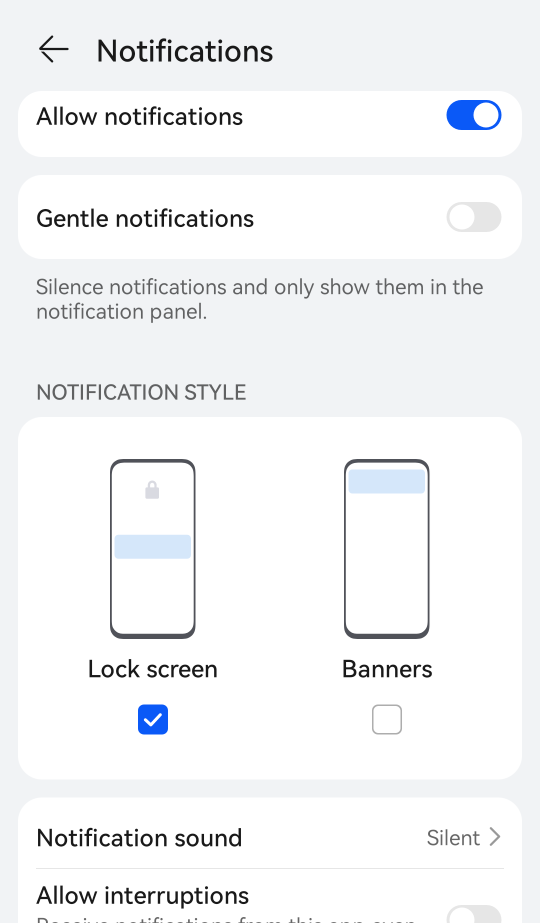
सबसे पहले Settings में जाकर Notifications की अनुमति जांचें। Android के कई versions में रास्ता Settings → Notifications → App notifications होता है। सूची में संबंधित app चुनें और Allow notifications को चालू रखें। यदि अलग-अलग categories दिखाई देती हैं, तो जरूरी category जैसे Messages, Reminders या Calls को भी enable करें।
किसी notification को long-press करके भी उसकी settings खोली जा सकती हैं। वहां देखें कि notification Alerting है या Silent। Silent notification notification shade में दिख सकती है, लेकिन sound या banner नहीं देगी।
2. Battery Optimization में App को Restrict न करें
Settings → Apps → संबंधित App → App battery usage में जाएं। फोन के अनुसार यहां Unrestricted, Optimized या Restricted जैसे विकल्प दिख सकते हैं। अगर app बहुत ज्यादा restrict है, तो उसे Unrestricted या सामान्य background usage की अनुमति देकर test करें। हर app के लिए unrestricted mode जरूरी नहीं है; इसे केवल उस app पर आजमाएं जिसकी notifications महत्वपूर्ण हैं।
Google के अनुसार Pixel devices में software update के बाद कुछ समय तक battery usage सामान्य से अधिक हो सकता है। इसलिए update के तुरंत बाद battery drain या notification delay दिखे तो कुछ समय तक usage monitor करें और battery settings को जरूरत से ज्यादा न बदलें।
3. Background Data और Data Saver जांचें
Settings → Apps → App info → Mobile data and Wi-Fi में जाकर Background data की अनुमति देखें। यदि Data Saver चालू है, तो जरूरी messaging या email app को Unrestricted data usage की अनुमति देनी पड़ सकती है। Menu का नाम Samsung, Xiaomi, vivo, OPPO और Motorola में अलग हो सकता है।
4. Do Not Disturb और Silent Notifications देखें
Quick Settings में Do Not Disturb बंद करके test करें। अगर notification panel में message दिखाई देता है लेकिन आवाज नहीं आती, तो app की notification category में Alerting mode और sound setting जांचें। Lock screen पर notifications छिपी हों तो Settings → Notifications → Lock screen में display preference बदलें।
5. App Update और Phone Restart करें
Play Store से app का update check करें। इसके बाद phone restart करके किसी दूसरे device से test notification भेजें। यदि समस्या केवल एक app में है, तो उसी app की settings और support page देखें। सभी apps में delay हो रहा है, तो phone का software update, network connection और system battery controls जांचें।
6. Notification History से छूटे Alerts देखें
कुछ Android devices में Settings → Notifications → Notification history विकल्प मिलता है। इसे पहले से enable किया गया हो तो हाल में dismiss या snooze की गई notifications देख सकते हैं। हर phone में यह सुविधा उपलब्ध नहीं होती और बंद रहने के दौरान पुराने alerts की पूरी history वापस नहीं मिलती।
किस स्थिति में क्या करें?
| समस्या | पहली जांच |
|---|---|
| App खोलने पर सारे alerts आते हैं | Battery restriction और Background data |
| Notification दिखती है, आवाज नहीं आती | Alerting/Silent और Do Not Disturb |
| केवल एक app में समस्या | App permission और in-app notification settings |
| Lock screen पर alert नहीं दिखता | Lock screen notification privacy |
| Update के बाद delay शुरू हुआ | App update, restart और battery usage monitor |
फोन की battery जल्दी खत्म हो रही हो तो फोन की Storage और background apps manage करने की guide के साथ app usage भी जांचें।
क्या Factory Reset करना चाहिए?
सिर्फ notification delay के लिए तुरंत Factory Reset न करें। पहले ऊपर दिए गए permission, battery और data settings जांचें। यदि समस्या कई apps में बनी रहती है, तो device manufacturer के support से संपर्क करें। Reset आखिरी विकल्प होना चाहिए और उससे पहले जरूरी data का backup लें।
अक्सर पूछे जाने वाले सवाल
Android में notifications app खोलने के बाद ही क्यों आती हैं?
App की background activity, battery optimization, background data या manufacturer की power management setting इसकी वजह हो सकती है।
क्या Battery Saver notifications रोक सकता है?
कुछ phones में Battery Saver background activity और network access सीमित कर सकता है। जरूरी app के लिए battery usage setting जांचें।
क्या सभी apps को Unrestricted कर देना चाहिए?
नहीं। इससे battery consumption बढ़ सकता है। केवल जरूरी app पर इसे test करें और फिर battery usage monitor करें।
Last updated: 26 November 2026

Hello! I’m Avi Sharma (also known as Avdhesh Sharma), the founder of HindiMeTo.com — a platform where I share everything about blogging, digital growth, and online success in the Hindi language, making it easier for people who prefer Hindi to understand and learn.
I’m a Performance Media Manager, a certified SEM expert, and someone who genuinely enjoys helping aspiring bloggers and entrepreneurs build real, successful careers in the digital space.
Follow me on:
IG – Instagram