1. Check Whether the Charging Cable Fits Properly
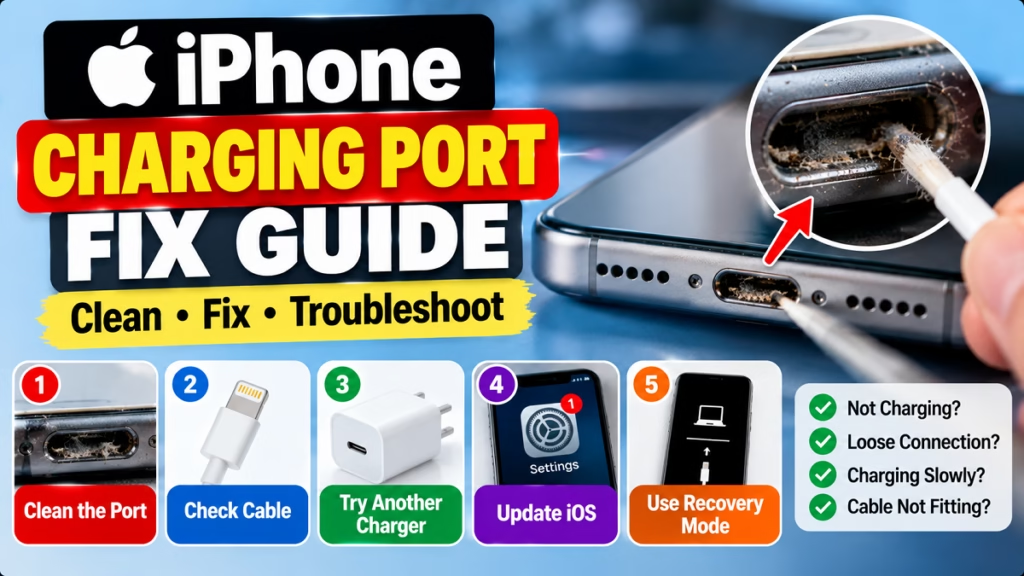
If your iPhone cable feels loose, doesn’t click into place, or falls out easily, lint or debris may be blocking the charging port. A damaged cable or port can also cause this problem.
Try these checks:
- Disconnect the charging cable from the iPhone.
- Inspect the cable connector for bent, damaged, or dirty contacts.
- Shine a light into the iPhone’s charging port and look for visible debris.
- Try a known-working, compatible charging cable.
- Connect it directly to a working power adapter and wall socket.
Your iPhone may have a Lightning port or USB-C port, depending on the model. Make sure the cable matches your device.
2. Clean the iPhone Charging Port Safely
Dust and pocket lint can build up inside the charging port over time. However, cleaning the port incorrectly can damage its delicate contacts.
- Disconnect the cable before inspecting the port.
- Do not insert metal pins, needles, paper clips, or other sharp objects.
- Do not pour water, alcohol, or cleaning liquid into the port.
- Do not use compressed air or force a tool inside.
- If debris is compacted or you cannot remove it safely, ask a qualified technician to clean the port.
Apple advises against inserting foreign objects into a connector, especially when liquid detection is involved. <Cite refs={[“turn858560search0″,”turn858560search8”]}/>
3. Try Another Charger and Cable
A faulty charging accessory can make a working iPhone appear to have a broken charging port.
Follow these steps:
- Use a compatible, known-working charging cable.
- Try a different compatible power adapter.
- Test another wall socket.
- Connect the cable firmly without forcing it.
- Leave the iPhone connected for about 30 minutes if the battery is very low.
If the iPhone charges normally with another cable, the original cable may be faulty. If multiple known-working accessories fail, the port, battery, or another component may need inspection. <Cite refs={[“turn858560search1″,”turn858560search7”]}/>
4. Check for a Liquid Detection Alert
If your iPhone displays a liquid-detection warning, disconnect the cable immediately. Do not keep reconnecting it to force charging.
Leave the iPhone in a dry area with airflow. Avoid heat, compressed air, rice, and inserting objects into the connector. Wait until the phone and cable are dry before trying again. If the warning keeps appearing with a dry, known-working cable, seek service. <Cite refs={[“turn858560search0″,”turn858560search6”]}/>
5. Restart Your iPhone if It Is Already On
If the iPhone is on but not charging properly, a restart may help rule out a temporary software issue.
If the touchscreen works, use the on-screen controls where available. If the iPhone is frozen, the force-restart procedure depends on the model and normally requires physical buttons.
Do not attempt a force restart if a required button is broken. Instead, follow Apple’s model-specific troubleshooting guidance or seek assistance.
6. Check for Software or Accessory Issues
If the iPhone charges intermittently or displays an accessory warning:
- Try a different compatible cable and adapter.
- Disconnect unnecessary accessories or adapters.
- Check for an available iOS update if the phone has enough battery.
- Check whether the problem happens with one cable or with every cable.
An accessory warning can be caused by a damaged or unsupported cable, or by dirt or damage in the port. <Cite refs={[“turn858560search7″,”turn858560search1”]}/>
7. Get the Charging Port Professionally Inspected
If your iPhone still will not charge after trying a known-working cable, adapter, and outlet, the charging port may be damaged. Other possible causes include a faulty battery or internal hardware.
Seek professional service if:
- The cable only works at a particular angle.
- The port looks bent, corroded, or damaged.
- The iPhone was recently exposed to liquid.
- Charging repeatedly disconnects.
- The phone does not respond to any known-working charging accessory.
Do not try to replace the port yourself unless you have the proper repair skills and tools. Ask the service provider to explain the diagnosis and cost before authorising a repair.
Frequently Asked Questions
Why is my iPhone charging port not working?
Possible causes include lint or debris, a faulty cable or adapter, liquid in the connector, a damaged port, or a battery or software problem. Test a different compatible cable and power adapter before assuming the port is broken.
Can I clean my iPhone charging port at home?
You can inspect the port, but avoid inserting sharp objects, liquids, or compressed air. If debris is compacted or you cannot safely remove it, have a qualified technician clean it.
Why does my iPhone charge only when the cable is held at an angle?
This can indicate a worn or damaged cable connector, debris in the port, or damage to the charging port itself. Stop forcing the cable into position and test with a known-working cable.
Can a software update fix an iPhone charging problem?
An update may help with some software-related issues, but it will not repair physical damage or remove compacted debris. Check the cable, adapter, and port first.
What should I do if my iPhone says liquid detected?
Disconnect the cable and let the connector dry in an area with airflow. Do not use heat, rice, compressed air, or objects inside the port. If the alert persists after the device is dry, seek service.
How do I know if my iPhone charging port needs replacement?
If multiple known-working cables and adapters fail, the port is visibly damaged, or charging works only at a specific angle, professional inspection is recommended. A technician should confirm the cause before replacing parts.
Final Words
If your iPhone charging port is not working, start by testing another compatible cable and adapter. Inspect the port for visible debris, but do not insert tools or liquids into it. If there is a liquid-detection alert, disconnect the cable and let the connector dry before trying again.
If the issue persists with known-working accessories, get the charging port and battery professionally inspected rather than forcing the connector or attempting a risky repair.
iPhone Charging Port, iPhone Not Charging, iPhone Charging Problem, Lightning Port, USB-C Port, iPhone Troubleshooting, Mobile Problems

Hindimeto.com एक हिंदी ब्लॉग है जो आपको विभिन्न विषयों पर जानकारी देता है। इस ब्लॉग का संस्थापक और प्रबंधक Avi Sharma है, जो एक पेशेवर ब्लॉगर और लेखक हैं।
Avi Sharma ने इस ब्लॉग को 2020 में शुरू किया था, जब उन्होंने अपनी पहली पोस्ट Tech के बारे में लिखी थी। उनका लक्ष्य था कि वे अपने अनुभव और ज्ञान को लोगों के साथ साझा करें और उन्हें हिंदी में उपयोगी और रोचक सामग्री प्रदान करें।
आज, Hindimeto.com एक लोकप्रिय और विश्वसनीय हिंदी ब्लॉग बन गया है, जो आपको Tech, Mobile, Apps, Make money, Biography article, Government scheme जैसे विषयों पर अद्भुत और गहन जानकारी देता है।