Mobile Power Button Not Working? 7 Ways to Fix It on Android
Quick Answer:
If your mobile Power button is not working, first remove any case that may be pressing or blocking it. If your phone is still switched on, use the screen’s built-in accessibility features or gestures to lock and wake the display. If the phone is switched off, charge it and check whether your model supports an alternative startup method. If the button feels stuck or remains unresponsive, it may need professional repair.
A mobile Power button is used to lock the screen, wake the phone, restart the device, and access the power menu. When it stops working, everyday tasks can become difficult.
The good news is that you may still be able to use your phone without the physical button. The right solution depends on whether your phone is currently on or completely switched off.
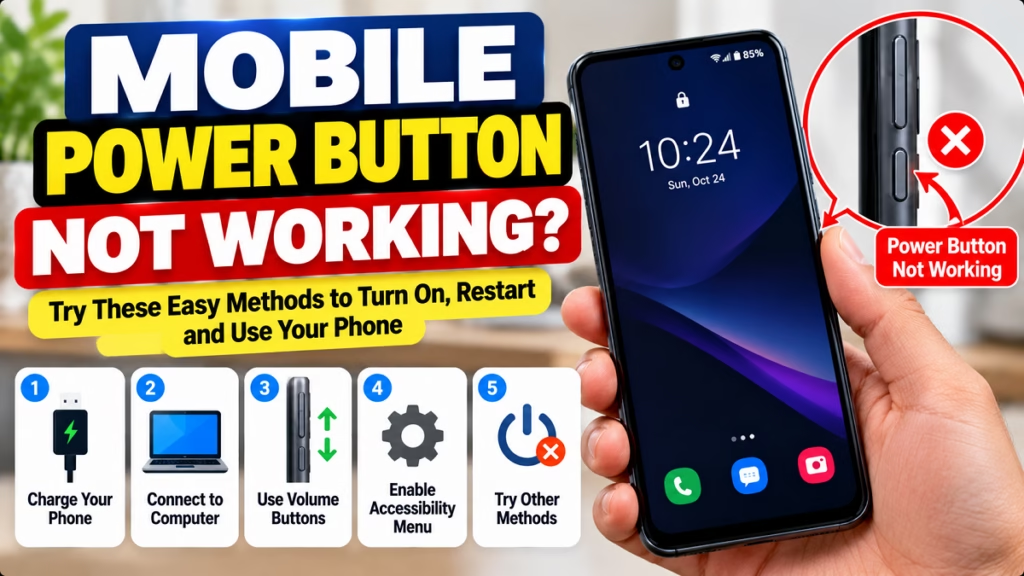
Why Is My Mobile Power Button Not Working?
Common causes include:
- Dust or debris around the button.
- A phone case pressing against or blocking the button.
- A stuck, loose, or physically damaged button.
- A software glitch.
- Physical damage after a drop.
- Liquid damage or internal hardware failure.
Before trying advanced solutions, check whether the button is physically stuck or whether the phone simply isn’t responding when you press it.
1. Remove the Phone Case and Check the Button
Sometimes the problem is not the Power button itself. A tight or damaged case can prevent the button from moving properly.
Try these steps:
- Remove the phone case.
- Inspect the Power button for visible dirt or damage.
- Press the button gently once.
- Check whether it clicks normally.
- See whether the screen turns off or wakes up.
Do not press the button repeatedly with excessive force. Avoid inserting pins, needles, or other sharp objects around it.
If the button feels loose, jammed, or has no normal click, it may require repair.
2. Use Double-Tap to Wake or Lift to Wake
If your phone is already switched on, you may be able to wake the screen without pressing the Power button.
Depending on your device, look for these settings:
- Double-tap to wake: Tap the screen twice to wake it.
- Lift to wake: Pick up the phone to activate the display.
- Always-On Display: Some devices show the time and notifications without fully waking the screen.
These options are not available on every Android phone. Search for “Double tap to wake” or “Lift to wake” in Settings.
If the phone is currently unlocked and usable, enable the available options now so you have alternatives if the screen turns off.
3. Use the Accessibility Menu
Many Android phones provide an Accessibility Menu or an equivalent accessibility shortcut. Depending on the device and Android version, it may offer an on-screen way to access certain system controls.
To check:
- Open Settings.
- Select Accessibility.
- Look for Accessibility Menu or an equivalent feature.
- Enable it and follow the setup instructions.
- Check which controls are available on your phone.
Some devices provide a screen-lock or power-menu control, while others offer a different set of shortcuts. The available features vary by manufacturer and software version.
Important: The Accessibility Menu generally helps when the phone is already on and you can access Settings. It will not usually boot a completely switched-off phone.
4. Use Scheduled Power On, If Your Phone Supports It
Some Android models offer scheduled power-on and power-off features. Availability varies by manufacturer, model, and software version.
If your phone is still working:
- Open Settings.
- Search for “Scheduled power on” or “Schedule power on/off.”
- Check whether your device supports the feature.
- Read the instructions before enabling it.
Do not assume this feature exists on all Samsung, Redmi, Xiaomi, POCO, Vivo, OPPO, Realme, Motorola, or OnePlus phones.
If the phone is already switched off, you may not be able to configure this feature until it starts again.
5. If the Phone Is Switched Off, Charge It First
If the Power button is not working and the phone is completely switched off, connect it to a compatible wall charger.
- Check that the charger and cable are working.
- Connect the phone to a power outlet.
- Leave it charging for around 30 minutes.
- Look for a battery icon, vibration, or charging indicator.
- Check whether your phone starts automatically when connected to power.
Not every Android phone starts automatically while charging. If the phone remains off, consult the manufacturer’s instructions for your exact model.
Some devices support a model-specific startup procedure involving the Volume buttons and a USB connection, but this is not universal. Do not select options such as Wipe Data or Factory Reset if a boot menu appears.
6. Connect the Phone to a Computer
A computer connection can help determine whether the phone is receiving power, but it is not a guaranteed way to turn on a switched-off device.
Try this:
- Turn on your computer.
- Connect the phone with a compatible USB cable.
- Wait a few minutes.
- Check for a charging indicator or other response.
- If possible, try another known-working cable.
If the phone remains unresponsive, the problem could involve the battery, charging port, Power button, or another internal component.
Avoid opening the phone or attempting electrical shortcuts to start it.
7. Get the Power Button Repaired if Necessary
If the Power button does not click or respond even after removing the case, it may be physically damaged.
Visit an authorised service centre or a trusted phone repair professional if:
- The button is loose or stuck.
- The phone was dropped before the problem started.
- The phone was exposed to liquid.
- Multiple attempts to use alternative methods fail.
- The phone will not turn on despite charging.
Ask the technician to check the Power button and related hardware. A button repair does not automatically require a factory reset, but explain that you want your data preserved and ask for permission to be obtained before any data-erasing procedure.
What to Do Based on Your Phone’s Condition
| Your situation | Best next step |
|---|---|
| Phone is on, but the button doesn’t work | Remove the case and enable screen gestures or accessibility features |
| Phone is on, but the screen won’t wake | Try double-tap or lift-to-wake if available |
| Phone is switched off | Charge it and check model-specific startup instructions |
| Button feels stuck or loose | Avoid forcing it; arrange a hardware inspection |
| Phone doesn’t respond to charging | Test a compatible charger and cable, then seek service if needed |
Frequently Asked Questions
Can I use my phone without the Power button?
Yes, in many cases. If the phone is already on, supported screen gestures and accessibility features may let you wake or lock the display and access certain controls. Some tasks, such as starting a completely switched-off phone, may still require a working button or a model-specific alternative.
How do I turn on my phone if the Power button is broken?
Connect it to a compatible charger and wait for a response. Some models start automatically or support alternative startup procedures, but there is no method that works for every Android phone. Check the instructions for your exact model.
Can I restart my Android phone without the Power button?
Some phones provide a software power menu through accessibility features or system controls. The exact options depend on the device and Android version. If the phone is frozen and the Power button is unusable, the available options may be limited.
Will a broken Power button damage my phone?
A broken button does not necessarily damage other components, but it can make the phone difficult to lock, wake, or restart. If the button is stuck, physically damaged, or associated with liquid damage, have it inspected.
Should I factory reset my phone to fix the Power button?
No. A factory reset does not repair a physically broken button and can erase personal data. Try the non-destructive checks first and seek professional hardware repair if necessary.
How much does Power button repair cost?
The cost depends on the phone model, the button mechanism, parts availability, and whether other components are damaged. Ask a repair centre for a quote after inspection rather than relying on a single price for every phone.
Final Words
If your mobile Power button is not working, start by removing the phone case and checking for a stuck button. If your phone is still switched on, use supported screen gestures or accessibility features to keep using it.
If the phone is switched off, charging and checking the manufacturer’s model-specific instructions are the safest first steps. When the button is physically damaged or the phone remains unresponsive, professional repair is the most reliable option.
For more troubleshooting advice, visit our Mobile Phone Problems Fix Guide.
Mobile Power Button, Power Button Not Working, Android Problems, Phone Repair, Turn On Phone Without Power Button, Android Troubleshooting, Mobile Problems

Hindimeto.com एक हिंदी ब्लॉग है जो आपको विभिन्न विषयों पर जानकारी देता है। इस ब्लॉग का संस्थापक और प्रबंधक Avi Sharma है, जो एक पेशेवर ब्लॉगर और लेखक हैं।
Avi Sharma ने इस ब्लॉग को 2020 में शुरू किया था, जब उन्होंने अपनी पहली पोस्ट Tech के बारे में लिखी थी। उनका लक्ष्य था कि वे अपने अनुभव और ज्ञान को लोगों के साथ साझा करें और उन्हें हिंदी में उपयोगी और रोचक सामग्री प्रदान करें।
आज, Hindimeto.com एक लोकप्रिय और विश्वसनीय हिंदी ब्लॉग बन गया है, जो आपको Tech, Mobile, Apps, Make money, Biography article, Government scheme जैसे विषयों पर अद्भुत और गहन जानकारी देता है।