My Phone Is Switched Off and Power Button Not Working: 7 Ways to Turn It On
Quick Answer:
If your Android phone is switched off and its Power button is not working, connect it to a working charger and wait 30 minutes. Then try connecting it to a computer using a USB cable or check whether your phone supports a volume-button startup method. These methods do not work on every device. If the phone remains off, the Power button or another hardware component may need repair.
When your phone switches off and the Power button stops working, even a simple restart can become difficult. You may be worried about losing your photos, contacts, WhatsApp messages, or other important data.
Fortunately, there are a few safe checks you can try before visiting a repair shop. The correct method depends on your phone’s brand, model, battery condition, and hardware design.
This guide explains what to try on Android phones, including Samsung, Redmi, Xiaomi, POCO, Vivo, OPPO, Realme, Motorola, and other brands.
Why Is My Phone Switched Off and the Power Button Not Working?
Several problems can cause this situation:
- The battery is completely discharged.
- The Power button is physically damaged or stuck.
- The charger, USB cable, or charging port is faulty.
- The phone has a software or hardware problem.
- The battery is worn out or has failed.
- The phone was exposed to water or suffered physical damage.
Before trying to turn it on, check whether the phone is actually charging. A phone with a dead battery may look completely unresponsive even when connected to a charger.
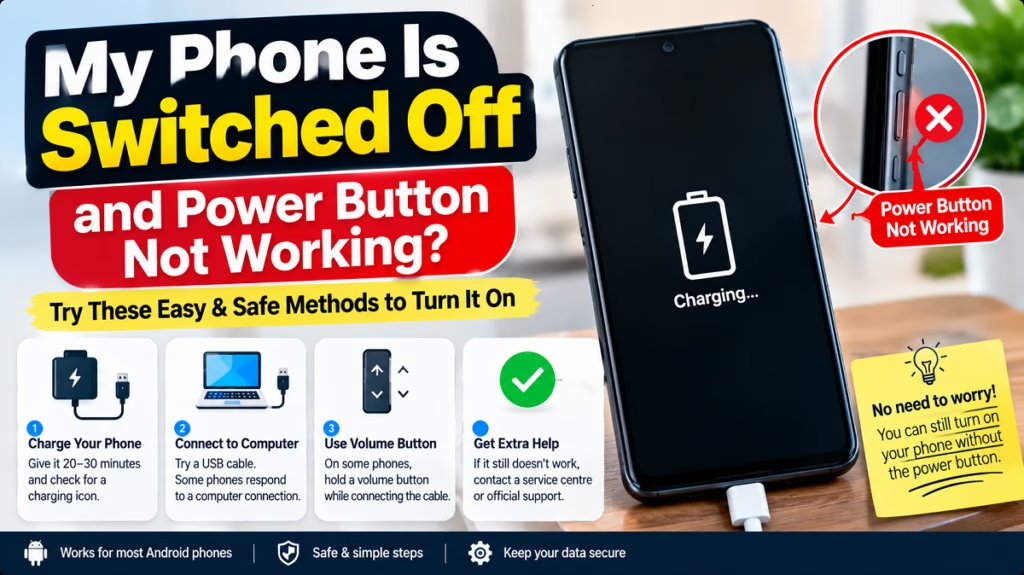
1. Charge Your Phone for 30 Minutes
Start with the simplest solution. If the battery is empty, the phone may not have enough power to start.
Follow these steps:
- Connect your phone to a compatible wall charger.
- Check that the cable is securely connected.
- Leave the phone charging for at least 30 minutes.
- Look for a battery icon, charging animation, vibration, or notification light.
- Check whether your specific phone model turns on automatically when charging.
If nothing appears on the screen, try a different compatible charger, cable, and wall outlet.
Important: Charging the phone does not guarantee that it will start automatically. Many Android phones still require a working Power button or a model-specific startup procedure.
If the phone becomes unusually hot, smells burnt, or has a swollen battery, disconnect it and seek professional assistance.
2. Connect Your Phone to a Computer Using USB
Some phones respond differently when connected to a computer than when connected to a wall charger. A computer connection may help you determine whether the device is receiving power.
Try this method:
- Turn on your computer.
- Connect your phone using a compatible USB data cable.
- Wait for 10–15 minutes.
- Check the phone’s screen for a charging indicator or other response.
- If nothing happens, disconnect it and try a known-working cable.
This method is primarily a diagnostic step. A USB connection alone usually cannot turn on a fully powered-off phone when its Power button is broken.
Do not follow random instructions to short pins, bridge contacts, or open the phone to trigger startup.
3. Try a Volume-Button Startup Method
Some Android devices have button combinations that open a boot menu or recovery mode. However, many of these combinations also require the Power button, so they may not help if that button is completely broken.
If your phone’s manufacturer documents a startup method that uses a volume button and USB connection, follow the instructions for your exact model.
Keep these points in mind:
- A volume-button combination that works on one brand may not work on another.
- Some combinations open recovery or bootloader menus rather than starting Android normally.
- Do not select options such as Wipe Data, Factory Reset, or Erase All Data.
- If you reach a boot menu and cannot navigate it safely, stop rather than guessing.
There is no universal volume-button combination that turns on every Android phone without a Power button.
4. Check Whether the Phone Is On but the Screen Is Black
Sometimes a phone appears switched off even though the device itself is still running. The problem may actually be the display.
You can check this without pressing the Power button:
- Connect the phone to a charger.
- Call your phone number from another phone.
- Listen for ringing or vibration.
- Check whether the device makes sounds or is recognised by a computer.
If it rings or vibrates but the display remains black, the screen or display connection may be faulty.
If the phone is genuinely switched off, calling it will not make it boot up. This test simply helps distinguish a display problem from a power problem.
5. Check Your Phone Brand’s Recommended Method
Different manufacturers use different startup and recovery procedures. Do not assume a method for one device will work on another.
| Phone brand | What to try first |
|---|---|
| Samsung | Charge with a compatible charger; check the model-specific recovery guidance |
| Redmi / Xiaomi / POCO | Charge, test another cable, and check the official model-specific startup procedure |
| Vivo / iQOO | Charge and consult the device’s official support guidance |
| OPPO / Realme | Charge and check the manufacturer’s troubleshooting instructions |
| Motorola | Charge and follow the model’s official power-on troubleshooting |
| OnePlus | Charge and consult the model-specific support instructions |
If the Power button is completely non-functional, many standard restart instructions will not work because they require that button. If the manufacturer’s procedure still depends on the broken button, professional repair may be necessary.
6. Avoid These Risky Methods
When searching for a solution, you may find videos suggesting that you open the phone or use improvised electrical connections. Avoid these methods.
Do not:
- Short battery terminals or motherboard contacts.
- Insert metal objects into the charging port.
- Open a phone with a sealed battery unless you are qualified to repair it.
- Select Factory Reset or Wipe Data in recovery mode.
- Use an incompatible charger or a damaged cable.
- Keep charging a phone that is overheating or has a swollen battery.
These actions can damage the phone, cause injury, or erase your data.
7. Visit an Authorised Service Centre if Nothing Works
If the phone remains completely unresponsive after charging and testing a known-working cable, it may have a faulty Power button, battery, charging port, or internal component.
A technician can inspect the device and determine whether the Power button needs replacement or another repair is required.
Before handing over the phone:
- Explain that the Power button is not working and the phone is switched off.
- Tell the technician if the phone was dropped or exposed to liquid.
- Ask them to preserve your data wherever possible.
- Request confirmation before any factory reset or data-erasing procedure.
A Power button repair does not automatically require deleting your data, although no repair can guarantee that data will remain intact in every situation.
Can I Turn On My Phone Without the Power Button?
Sometimes, but it depends on the model and the condition of the phone. Certain devices may start when connected to power, while others require the Power button to boot from a fully switched-off state.
If your phone does not support an alternative startup method, repairing the button may be the only practical solution.
Frequently Asked Questions
Can I turn on an Android phone without the Power button?
Some Android phones support alternative startup behaviour, but there is no universal method. Try charging the phone and consult the official instructions for your exact model. If the phone requires the Power button to boot, it may need repair.
Will connecting my phone to a charger turn it on automatically?
Not always. Many phones show a charging icon while remaining switched off. Whether the phone starts automatically depends on the model and its software.
Can I turn on my phone using only the Volume button?
Usually, the Volume button alone is not enough. Some devices support special startup combinations, but they may also require the Power button. Check the manufacturer’s instructions for your specific model.
Will my data be deleted if the Power button is repaired?
A Power button repair does not normally require a factory reset. However, data preservation depends on the actual fault and repair process. Ask the technician not to erase or reset the device without your permission.
What should I do if my phone does not show a charging icon?
Try a compatible charger, a different cable, and a working wall outlet. Leave the phone connected for around 30 minutes. If it remains unresponsive, the battery, charging port, display, or internal hardware may need inspection.
Should I open my phone to fix the Power button?
No, not unless you have the appropriate repair skills and equipment. Modern phones often contain sealed batteries and delicate components. Opening the device without proper tools can cause further damage.
Final Words
If your phone is switched off and the Power button is not working, begin by charging it for 30 minutes and checking whether the phone responds. A computer connection may help with diagnosis, but neither charging nor connecting to USB guarantees that the phone will start.
If the device remains unresponsive, avoid risky hardware tricks and seek a professional inspection. The best next step depends on your phone’s exact brand and model.
Android Phone Problem, Power Button Not Working, Phone Won’t Turn On, Turn On Phone Without Power Button, Android Troubleshooting, Phone Repair, Mobile Problems

Hindimeto.com एक हिंदी ब्लॉग है जो आपको विभिन्न विषयों पर जानकारी देता है। इस ब्लॉग का संस्थापक और प्रबंधक Avi Sharma है, जो एक पेशेवर ब्लॉगर और लेखक हैं।
Avi Sharma ने इस ब्लॉग को 2020 में शुरू किया था, जब उन्होंने अपनी पहली पोस्ट Tech के बारे में लिखी थी। उनका लक्ष्य था कि वे अपने अनुभव और ज्ञान को लोगों के साथ साझा करें और उन्हें हिंदी में उपयोगी और रोचक सामग्री प्रदान करें।
आज, Hindimeto.com एक लोकप्रिय और विश्वसनीय हिंदी ब्लॉग बन गया है, जो आपको Tech, Mobile, Apps, Make money, Biography article, Government scheme जैसे विषयों पर अद्भुत और गहन जानकारी देता है।