SIM Card Inserted but No Service on Android: 10 Fixes That Work
Quick Answer:
If your Android phone shows “No Service” even though the SIM card is inserted, turn Airplane Mode on and off, restart your phone, check whether the SIM is enabled, and manually select your mobile network. If the problem continues, test the SIM in another phone to identify whether the issue is with the SIM card, network coverage, or your device.
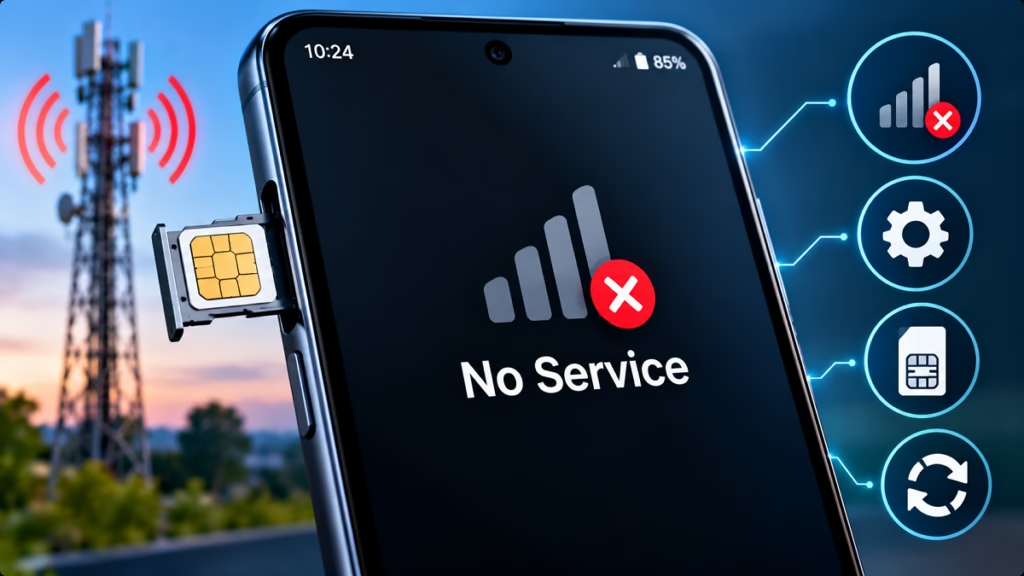
You insert your SIM card into an Android phone, but the status bar still shows No Service, Emergency Calls Only, or No Network. You may be unable to make calls, send SMS messages, or use mobile data.
This problem can happen because of incorrect network settings, a damaged SIM card, poor network coverage, an inactive SIM, or a temporary software issue.
The good news is that you can check most of these causes at home. Follow the solutions below in order, starting with the simplest fixes.
Why Does My Android Phone Say No Service With a SIM Card Inserted?
Your Android phone may display No Service for several reasons:
- The SIM card is not properly seated in the SIM tray.
- Airplane Mode or the SIM switch is disabled.
- Your carrier has a temporary network outage.
- You are in an area with weak or no cellular coverage.
- The SIM card is damaged, inactive, or not activated.
- The phone is connected to an incompatible network mode.
- Network settings have become corrupted.
- The phone has a damaged SIM slot, antenna, or other hardware component.
First, determine whether your phone detects the SIM card. If the phone says No SIM, it may not be reading the card at all. If it displays your carrier name but shows No Service, the SIM may be detected but unable to register on the mobile network.
1. Turn Airplane Mode On and Off
Airplane Mode temporarily disables your phone’s wireless connections. Turning it on and off can force Android to search for the mobile network again.
Follow these steps:
- Swipe down from the top of your screen to open Quick Settings.
- Tap Airplane Mode to turn it on.
- Wait approximately 10–15 seconds.
- Turn Airplane Mode off.
- Wait for your carrier name and signal bars to appear.
If your phone reconnects to the network, try making a call.
2. Restart Your Android Phone
A temporary Android software glitch can prevent the phone from registering with the carrier network.
To restart your phone:
- Press and hold the Power button, or use the power menu for your device.
- Tap Restart.
- Wait for the phone to boot completely.
- Check whether the network signal returns.
If your phone has two SIM slots, check that the correct SIM is enabled after restarting.
3. Remove and Reinsert the SIM Card
An incorrectly positioned or dirty SIM card may cause connection problems.
Follow these steps carefully:
- Turn off your phone.
- Eject the SIM tray using the SIM eject tool.
- Remove the SIM card.
- Check for visible damage, dirt, or corrosion.
- Wipe the card gently with a clean, dry, lint-free cloth.
- Place the SIM correctly in the tray.
- Reinsert the tray without forcing it.
- Turn on your phone and check the signal.
Important: Do not use water or household cleaning chemicals on the SIM card. Never force the tray into the phone.
4. Check Whether the SIM Card Is Enabled
On some Android phones, a SIM can be disabled in the settings even when it is physically inserted.
The exact menu names vary by phone model, but try the following:
- Open Settings.
- Select Network & Internet, Connections, or Mobile Network.
- Open SIMs or SIM Manager.
- Select the affected SIM.
- Make sure Use SIM is enabled.
- Check that the correct SIM is selected for calls and mobile data if you use two SIM cards.
If the SIM appears greyed out or Android reports that no SIM is present, continue with the SIM testing steps below.
5. Select the Mobile Network Manually
Your phone may fail to connect automatically to the correct carrier network. Manually selecting your operator can sometimes resolve this.
- Open Settings.
- Go to Mobile Network or Connections.
- Select your SIM card.
- Open Network Operators.
- Turn off Automatically select network, if the option is available.
- Wait while the phone searches for available networks.
- Select your own mobile operator.
Allow the phone a little time to register.
If your carrier does not appear in the list, or registration fails, the problem may involve local coverage, SIM activation, or a carrier-side issue. You can turn automatic network selection back on if manual selection does not help.
6. Check the Preferred Network Type
An incorrect network mode can prevent your phone from connecting properly.
For example, a device configured for an unsuitable network mode may struggle to register where that mode is unavailable.
To check the setting:
- Open Settings.
- Select Mobile Network.
- Choose the affected SIM.
- Open Preferred Network Type or Network Mode.
- Select an available automatic option, such as 5G/4G/3G/2G Auto or 4G/3G/2G Auto, depending on your device and carrier.
Do not force a network mode that your phone or carrier does not support. If your phone suddenly lost service after changing network settings, restoring the recommended automatic option may help.
7. Check for a Local Network Outage
Sometimes the phone and SIM card are working correctly, but the carrier’s network is unavailable.
Try these checks:
- Move outdoors or to a different nearby location.
- Ask someone using the same carrier whether their phone has a signal.
- Check your carrier’s official app or support channel for service updates.
- Wait briefly and check again if a temporary outage is suspected.
If several users on the same carrier have lost service in the same area, a local network issue is more likely than a phone hardware fault.
If the issue occurs only inside one building, weak indoor coverage may be the cause.
8. Reset Network Settings
If the problem started after changing settings, installing an update, or switching network configurations, resetting network settings may help.
On many Android phones, the option is available under:
Settings → System or General Management → Reset → Reset Network Settings
The wording and location vary by manufacturer. On some devices, network settings are included in a broader reset option.
Before confirming, read the on-screen warning. Depending on your phone, this reset may remove saved Wi-Fi networks and passwords, Bluetooth pairings, and mobile network preferences.
It generally does not erase your photos, apps, or personal files, but verify the exact reset option before proceeding. Avoid selecting Factory Data Reset for this issue unless a qualified technician or your device manufacturer recommends it after other checks.
9. Test the SIM Card in Another Phone
This is one of the most useful ways to identify the cause.
Try the following two tests:
Test A: Put your SIM card in another compatible, unlocked phone.
- If it also shows No Service, the issue may be with the SIM card, carrier account, activation, or network.
- If it works normally, the original phone may have a settings, software, compatibility, or hardware problem.
Test B: Put a known-working compatible SIM card in your Android phone.
- If the second SIM works, your original SIM or carrier account is a more likely cause.
- If the second SIM also shows No Service, investigate your phone’s network settings, SIM slot, antenna, or compatibility.
A SIM that fails in another phone may need to be checked or replaced by your carrier.
10. Contact Your Carrier or Visit a Service Centre
If none of the previous fixes works, contact your mobile operator and ask them to check:
- Whether the SIM is active and correctly provisioned.
- Whether there are account restrictions or service interruptions.
- Whether a replacement SIM is required.
- Whether the phone or SIM needs any carrier-side configuration.
If multiple working SIM cards fail in your phone, contact the phone manufacturer’s authorised service centre. A damaged SIM reader, antenna, or other internal component may require professional inspection.
If the phone was recently repaired, dropped, or exposed to liquid, mention that when seeking help.
Quick Diagnosis: SIM Card or Android Phone?
| What you observe | Possible cause | What to try |
|---|---|---|
| “No SIM” appears | SIM not detected or faulty | Reinsert the SIM and test another card |
| SIM is detected but shows “No Service” | Network registration or coverage issue | Airplane Mode, manual network selection |
| SIM works in another phone | Original phone settings or hardware | Reset network settings and test another SIM |
| Multiple SIMs fail in your phone | Device, compatibility, or network settings | Check settings and seek service support |
| Other users on the same carrier also have no signal | Local network outage | Check carrier updates and wait for restoration |
| Signal appears but mobile data does not work | Mobile data or APN configuration | Check data settings and carrier configuration |
These are diagnostic clues, not definitive proof. The two-SIM test is usually more useful than guessing the cause from the message alone.
Frequently Asked Questions
Why does my Android phone say No Service when the SIM is inserted?
Your phone may be unable to register on the carrier network because of poor coverage, incorrect network settings, SIM activation problems, a damaged SIM, or a temporary carrier outage. Restart the phone and test the SIM in another device.
Why does my phone show Emergency Calls Only?
This message generally means the phone cannot register for normal service on the available mobile network. Emergency calling availability depends on local network and emergency-service support. Check coverage, network selection, SIM activation, and your carrier account.
Can a software update cause No Service?
A software update can sometimes affect network settings or expose a compatibility issue. Restart your phone, check for any additional system updates, and reset network settings if appropriate. If the issue began immediately after an update, contact your device manufacturer if the problem persists.
Will resetting network settings delete my photos?
A standard network-settings reset normally does not delete photos, videos, or personal files. However, it may remove saved Wi-Fi connections, Bluetooth pairings, and network preferences. Read the confirmation screen before proceeding.
How do I know whether my SIM card is damaged?
Insert the SIM into another compatible phone. If it also fails to connect, ask your carrier to test the SIM and check its activation status. If another SIM works in your original phone, the original SIM or account is a likely suspect.
Should I factory reset my Android phone to fix No Service?
Not as a first step. Try restarting, checking SIM settings, testing another SIM, and resetting network settings first. A factory reset erases personal data and should be considered only after backing up your phone and exhausting less destructive solutions.
Final Words
If your SIM card is inserted but your Android phone shows No Service, start with Airplane Mode, restart the phone, and check the SIM settings. Next, manually select the carrier network and test the SIM in another phone.
The most important step is to find out whether the problem follows the SIM card or stays with the phone. That can help you decide whether to contact your carrier for a SIM or account check or seek help for your Android device.
For other smartphone issues, see our Mobile Phone Problems Fix Guide.
Android No Service, SIM Card Problem, SIM Card No Network, No Signal Android, Emergency Calls Only, Android Troubleshooting, Mobile Network Problems

Hindimeto.com एक हिंदी ब्लॉग है जो आपको विभिन्न विषयों पर जानकारी देता है। इस ब्लॉग का संस्थापक और प्रबंधक Avi Sharma है, जो एक पेशेवर ब्लॉगर और लेखक हैं।
Avi Sharma ने इस ब्लॉग को 2020 में शुरू किया था, जब उन्होंने अपनी पहली पोस्ट Tech के बारे में लिखी थी। उनका लक्ष्य था कि वे अपने अनुभव और ज्ञान को लोगों के साथ साझा करें और उन्हें हिंदी में उपयोगी और रोचक सामग्री प्रदान करें।
आज, Hindimeto.com एक लोकप्रिय और विश्वसनीय हिंदी ब्लॉग बन गया है, जो आपको Tech, Mobile, Apps, Make money, Biography article, Government scheme जैसे विषयों पर अद्भुत और गहन जानकारी देता है।