How to Unlock Motorola Phone Password Without Factory Reset
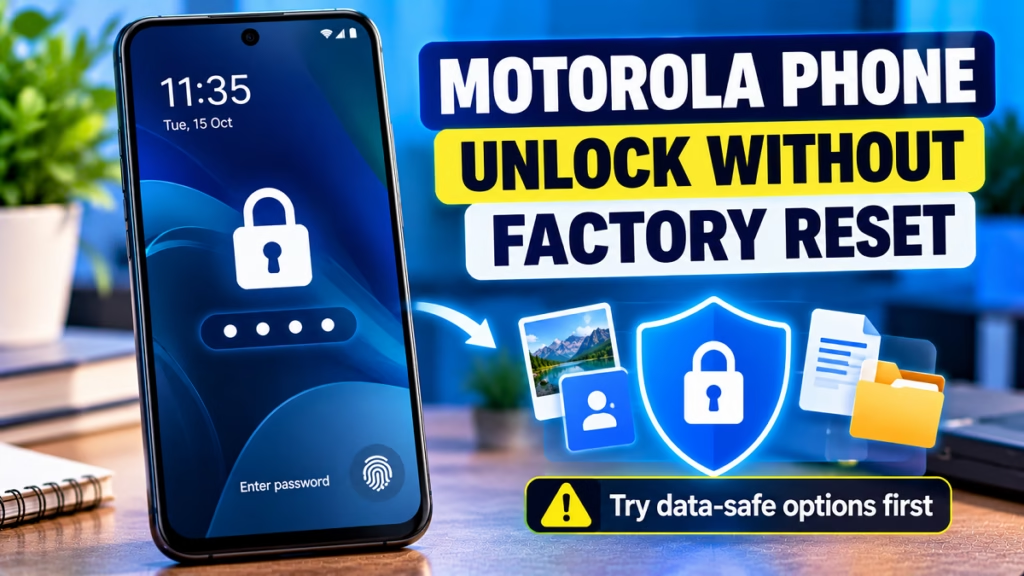
If you forgot your Motorola phone’s PIN, password, or pattern, you may be able to regain access without losing your photos, contacts, and other data—but the available options depend on your Android version and how the phone was configured.
Important: Motorola’s official guidance says that if you’ve forgotten the screen-lock PIN, pattern, or password, a factory reset is normally required. There is no guaranteed universal method to bypass the lock and preserve all local data.
Before considering a reset, try the following options.
Quick Answer
- Fingerprint or Face Unlock still works: Try it if the phone permits biometric unlocking in its current state.
- You know the correct PIN but the screen isn’t accepting it: Check the keyboard, language, and touchscreen.
- The phone is already unlocked and you want to change the password: Open Settings and change the screen lock using the current PIN.
- You completely forgot the PIN, password, or pattern: Check whether your data is backed up before doing anything that could erase it.
1. Try Fingerprint or Face Unlock First
If your Motorola phone still accepts a fingerprint or face, try that before restarting the device.
However, Android may require your PIN, pattern, or password after a restart, after certain security events, or after too many failed unlock attempts. Biometrics cannot always replace the primary screen lock.
If you successfully unlock the phone:
- Back up your photos and videos to Google Photos or a computer.
- Sync your contacts and important files.
- Open Settings → Security & privacy or Security.
- Open the screen-lock settings.
- Change the lock using the existing PIN, pattern, or password.
Motorola requires the current screen-lock credential to remove or change the lock through Settings.
2. Check Whether You Can Access Your Data Another Way
If the phone is locked and biometrics are unavailable, try these data-safe checks before resetting it:
- Google Photos: Check whether your photos and videos have already been backed up.
- Google Contacts: Check whether your contacts are synced to your Google Account.
- Google Drive: Look for documents and files you previously uploaded.
- Computer: If you previously configured a trusted file-transfer method, check whether your files are accessible through it. A locked Android phone generally won’t allow ordinary USB file access without unlocking or approving access.
- microSD card: If your Motorola model has a removable card and you saved files on it, check whether those files can be read separately. Adopted or encrypted storage may not be readable outside the phone.
These options don’t remove the screen lock, but they may help protect your data before you decide what to do next.
3. Can Google Find My Device Unlock a Motorola Phone?
Google’s Find Hub (formerly Find My Device) is useful for locating, securing, or erasing a lost Android phone. It is not a standard method for removing a forgotten screen-lock PIN while preserving the phone’s local data.
Avoid websites or software claiming that they can universally bypass any Motorola lock without data loss. Results depend on the model, Android version, and security configuration, and some tools may erase data or put your information at risk.
4. What If You Completely Forgot the Password?
If you cannot unlock the phone using any configured method, Motorola’s official guidance says that you generally need to erase the phone and set it up again. A factory reset deletes local data that has not been backed up.
Before considering that option:
- Make sure you know the Google Account previously used on the phone.
- Check your Google Photos, Contacts, and Drive backups from another device.
- If the data is especially important and has no backup, contact an authorised Motorola service centre before resetting. Ask whether any model-specific data-preserving option exists; recovery is not guaranteed.
- Do not choose Wipe data/factory reset in Recovery Mode if your goal is to preserve local data.
Official guidance: Motorola — Forgot my passcode or pattern lock.
5. Frequently Asked Questions
Can I unlock a Motorola phone without a factory reset?
Possibly, if a configured fingerprint or face-unlock method still works, or if you remember the correct screen-lock credential. If you completely forgot the PIN, pattern, or password, Motorola generally requires a reset.
Will a Motorola factory reset delete my photos?
A factory reset deletes locally stored photos and other data that haven’t been backed up. Photos already synced to Google Photos or another cloud service may still be available through that service.
Can I unlock my Motorola phone using my Google Account?
Signing in to your Google Account does not normally remove the current Android screen lock. The account is important for device ownership verification and setting up the phone after a reset.
Can a mobile repair shop unlock my Motorola without deleting data?
It depends on the model and the problem. Ask an authorised service centre whether a legitimate data-preserving recovery option exists before approving any reset or software flashing. No successful recovery can be guaranteed.
Does Recovery Mode unlock a Motorola phone without losing data?
Recovery Mode does not provide a standard, supported option to remove a forgotten screen-lock credential while preserving personal data. The Wipe data/factory reset option erases data.
Conclusion
If you want to unlock your Motorola phone password without a factory reset, first try any configured biometric method and protect your data through available backups. If you’ve completely forgotten the screen-lock credential, don’t rely on universal bypass claims—Motorola generally requires a reset, and an authorised service centre is the best next step if the local data is irreplaceable
Motorola Tips, Motorola Password, Android Lock Screen, Forgot Phone Password, Motorola Troubleshooting, Android Security, Data Recovery

Hello! I’m Avi Sharma (also known as Avdhesh Sharma), the founder of HindiMeTo.com — a platform where I share everything about blogging, digital growth, and online success in the Hindi language, making it easier for people who prefer Hindi to understand and learn.
I’m a Performance Media Manager, a certified SEM expert, and someone who genuinely enjoys helping aspiring bloggers and entrepreneurs build real, successful careers in the digital space.
Follow me on:
IG – Instagram